NASmeister app icon

Your Synology NAS,
at a glance

Live vitals, a dashboard you arrange yourself, and a kiosk mode that turns a spare iPhone into a permanent NAS monitor.

iPhone, iOS 18.2 or later. Works with Synology DSM 6 and DSM 7.

What it does

Everything about your NAS, in one place

NASmeister talks to DSM straight from your phone, over your own network or your own QuickConnect ID. No account, no middleman, no waiting for a web UI to load.

Your layout

A dashboard that is actually yours

Drag, drop and resize tiles across as many pages as you like. Every module is a tile, and you add only the ones you care about.

  • Five tile sizes, from a single square to full width
  • Multiple pages per server
  • Save a layout as a template and reuse it on another NAS
  • Two to four NAS units on one board, each with its own colour
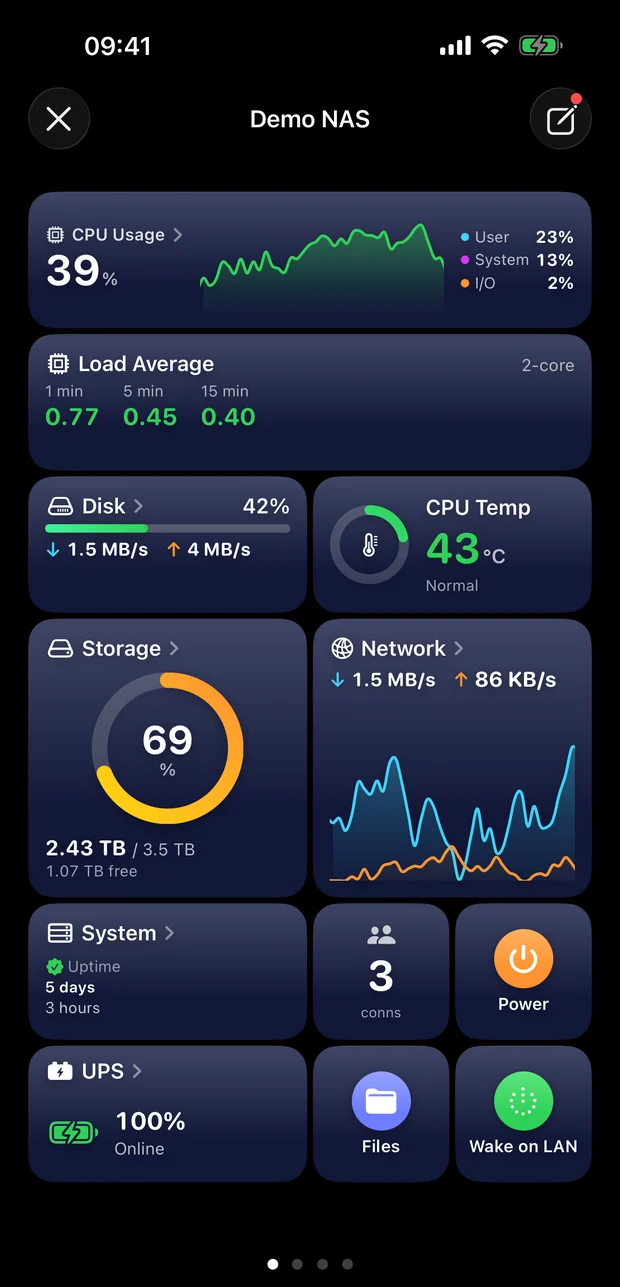
A NASmeister dashboard on iPhone: full width CPU usage and load average, disk and CPU temperature side by side, storage and network, and small tiles for connections, Power, Files and Wake on LAN, with four page dots

Kiosk mode

An old iPhone becomes a NAS monitor

Turn the phone sideways and one tile fills the screen. Kiosk mode cycles through your tiles at an interval you choose and keeps the display awake, so a spare iPhone on a stand next to the NAS earns its retirement.

Before it breaks

Catch a failing drive early

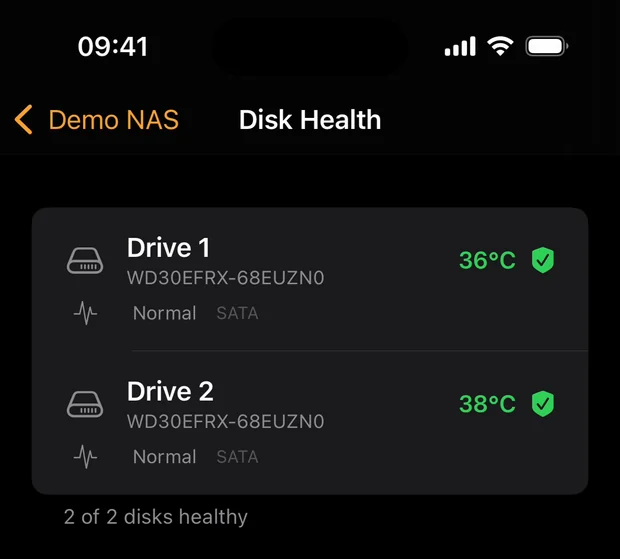
Per-drive S.M.A.R.T. status, temperature and remaining life, storage pool and RAID state including rebuild and scrubbing, UPS charge and runtime, and whether DSM has an update waiting.

  • Disk Health with a status badge per drive
  • Storage pool state: normal, degraded, rebuilding, scrubbing
  • UPS charge, runtime and mode
Disk Health detail listing two drives with temperature and S.M.A.R.T. status

History

Not just now. Last week, last month.

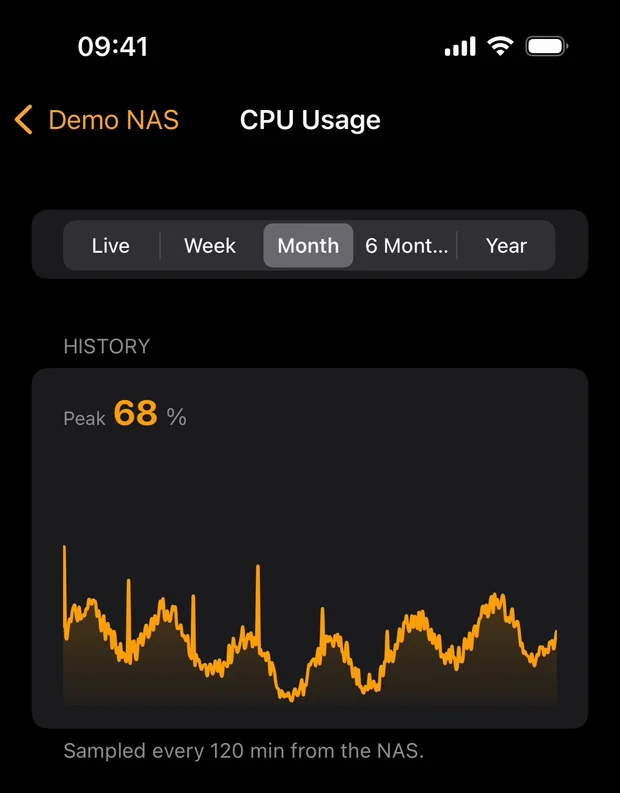
CPU, memory, disk and network go beyond live: day, week, month, six months or a year, read straight from the NAS. Press and hold the graph to read an exact value at a point in time.

CPU usage history over a month with a peak value

Do something about it

Not only watching

Wake the NAS with Wake on LAN, or let the NAS wake your other machines. Restart or shut down. Run a scheduled task, drop a connection, start and stop Docker containers and virtual machines, or make the NAS beep so you can find it on a shelf.

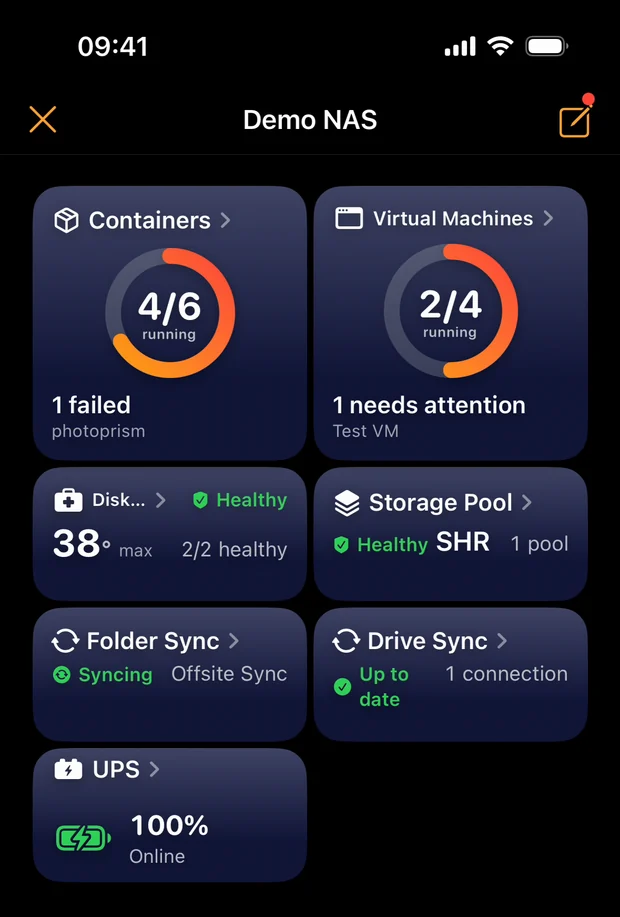
Containers and Virtual Machines tiles with Folder Sync, Drive Sync and UPS

The library

A tile for everything, and you pick the ones you use

Every entry below is a tile you can put on a page, resize and open for a full screen of detail. The gallery shows a live preview of each one before you add it, and the list keeps growing.

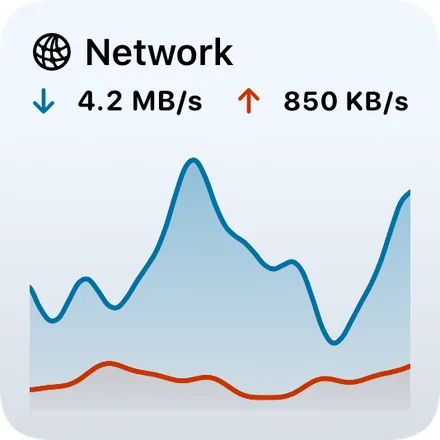
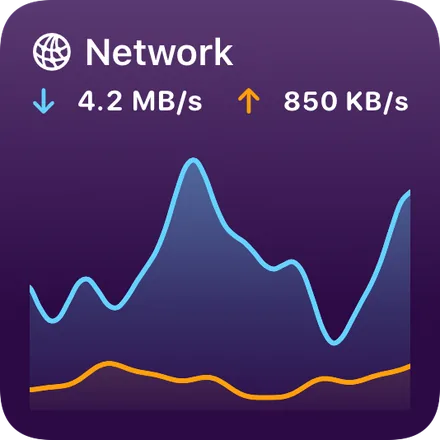
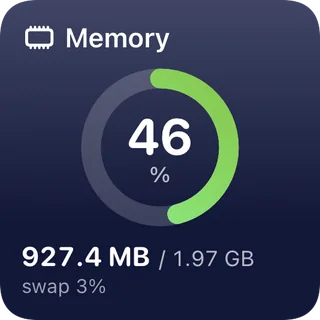
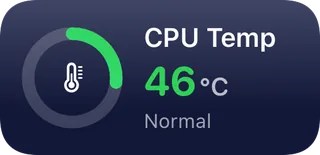
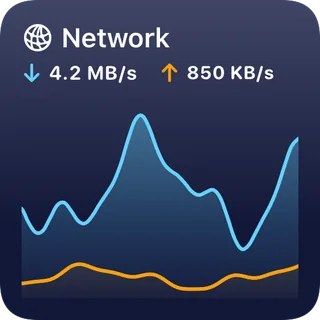
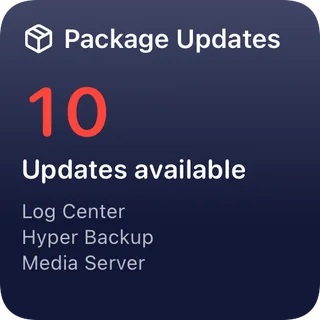
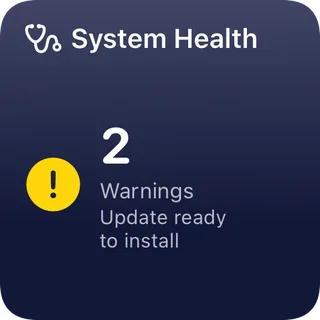
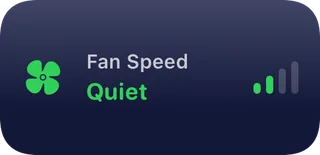
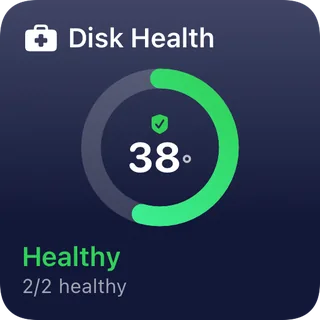
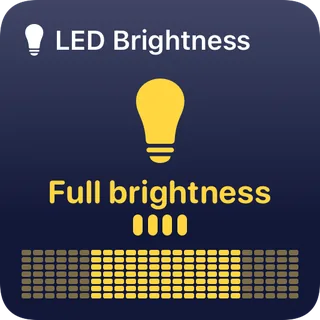
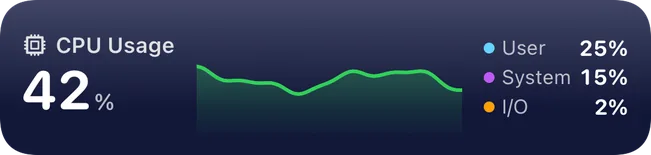
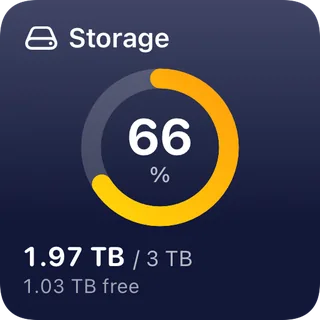
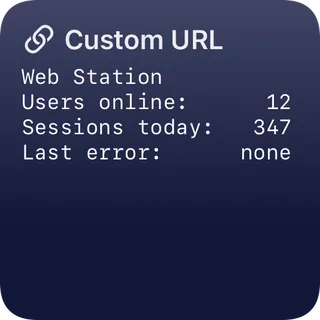
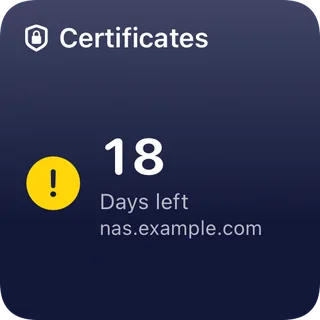
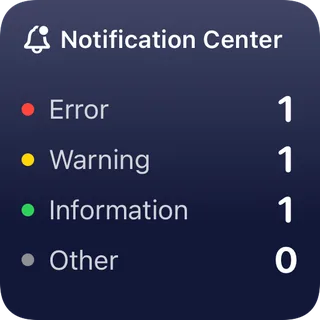
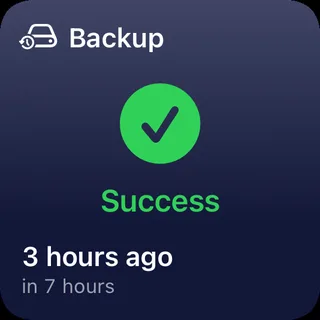
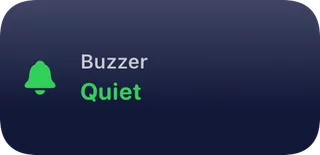
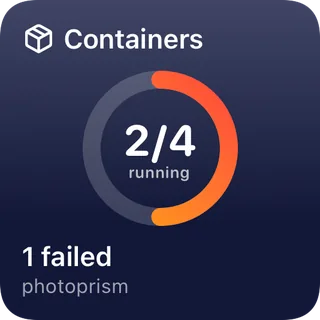
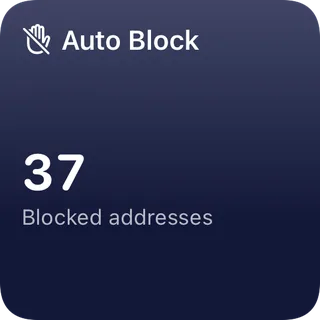
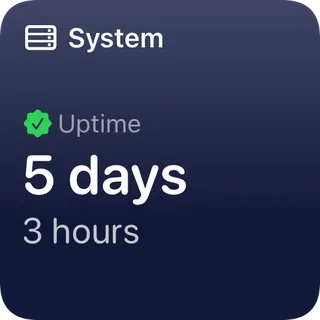
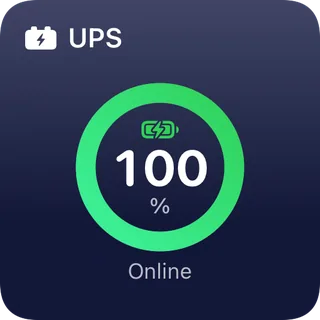
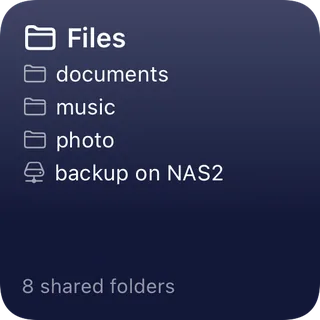
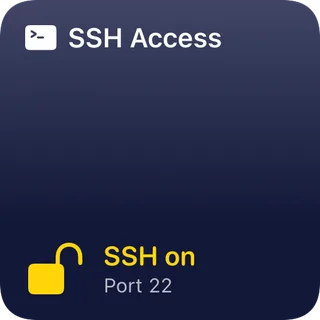
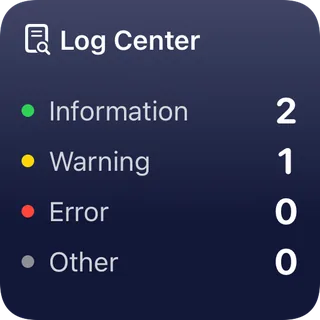
Memory tile: 46 percent used, 927.4 MB of 1.97 GB CPU temperature tile: 46 °C, normal Network tile with a live throughput chart, 4.2 MB/s down Package Updates tile: 10 installed packages have an update waiting System Health tile: 2 warnings, an update ready to install Fan Speed tile set to the Quiet cooling preset Disk Health tile: hottest drive 38 °C, S.M.A.R.T. status healthy LED Brightness tile at full brightness, with its DSM schedule CPU Usage tile at full width: 42 percent, split into user, system and I/O Storage tile: volume 66 percent full, 1.97 TB of 3 TB Custom URL tile showing plain text returned by a script on the NAS Certificates tile: 18 days left before nas.example.com expires Backup tile: the last Hyper Backup run succeeded 3 hours ago, the next one is due in 7 hours Buzzer tile: the NAS beeper is quiet Containers tile: 2 of 4 containers running, one failed Auto Block tile: 37 addresses blocked after failed sign-ins System tile: DSM uptime of 5 days UPS tile: battery at 100 percent, running on line power Files tile listing the shared folders on the NAS SSH Access tile: SSH is on, port 22 Log Center tile: information, warning and error counts
Real tiles with sample data, at the sizes you can pick: from a single square to the full width of the screen.
CPU UsageFree
CPU LoadFree
CPU TempFree
MemoryFree
NetworkFree
DiskFree
StorageFree
SystemFree
UPSFree
Server ColorsFree
Disk HealthPro
Storage PoolPro
Log CenterPro
UsersPro
DSM UpdatePro
Task SchedulerPro
ContainersPro
Virtual MachinesPro
Folder SyncPro
Drive SyncPro
BackupPro
Wake on LANPro
PowerPro
Find MePro
FilesPro
Package UpdatesPro
Fan SpeedPro
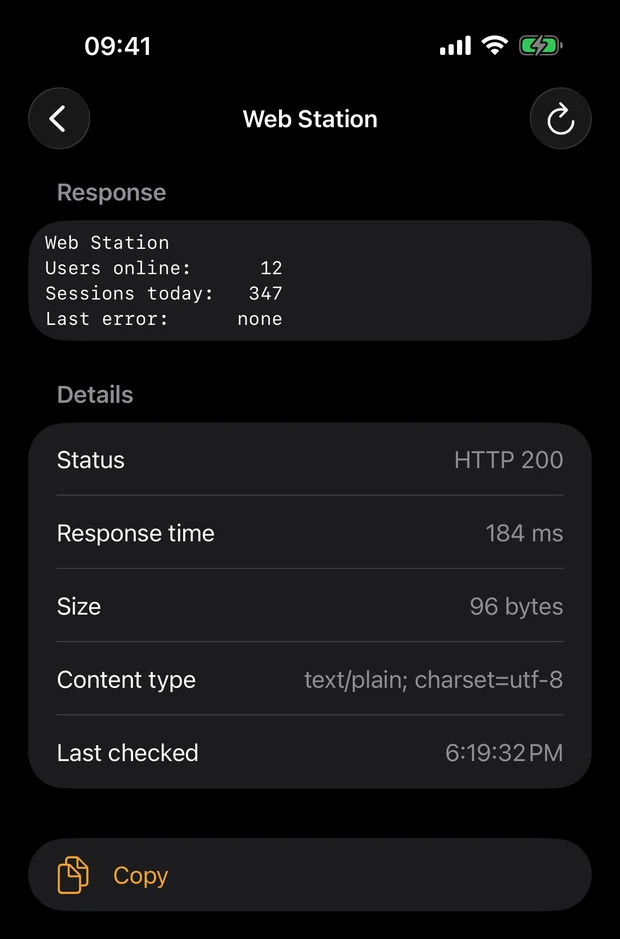
BuzzerPro
LED BrightnessPro
Custom URLPro
System HealthPro
CertificatesPro
Auto BlockPro
SSH AccessPro
and more

Add a tile, then size it to taste

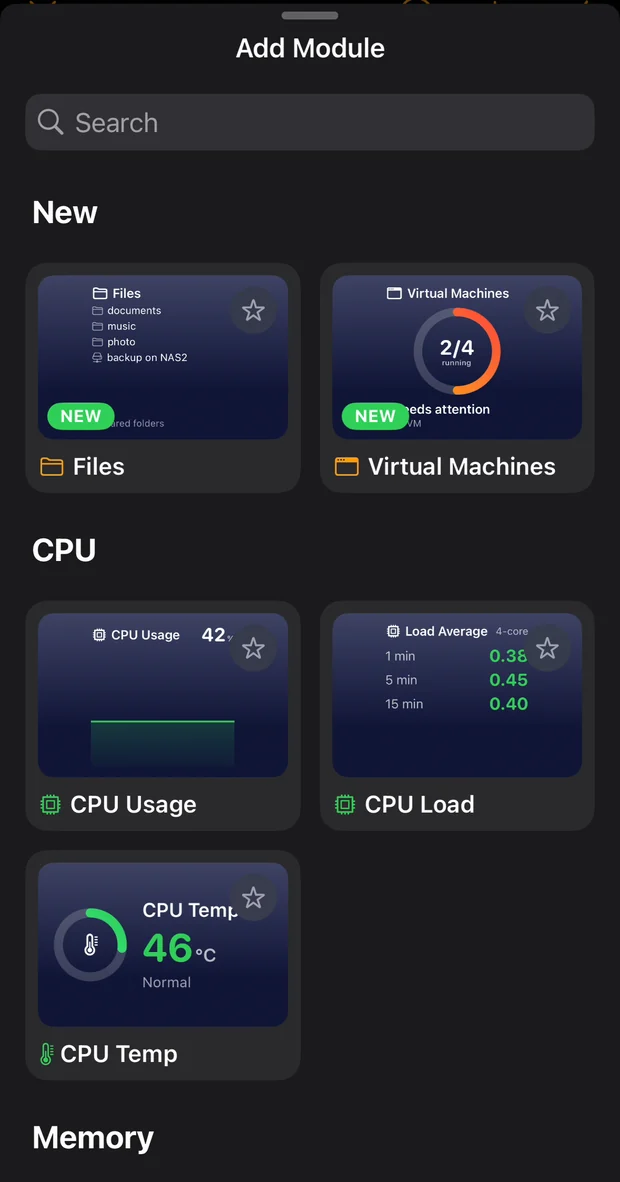
The gallery does not show a list of names. Every entry is a live preview of the real tile with sample data. Choose a size when you add it, from a single square to full width, and change it whenever you like: the more room you give a module, the more it shows.

Module gallery showing live previews of each tile

Hands on

Not every tile just reports a number

Plenty of modules let you act, not only look. Three of them, by way of example: inspect a container that fell over, power a virtual machine back on, or pull a file off the NAS while you are away from your desk.

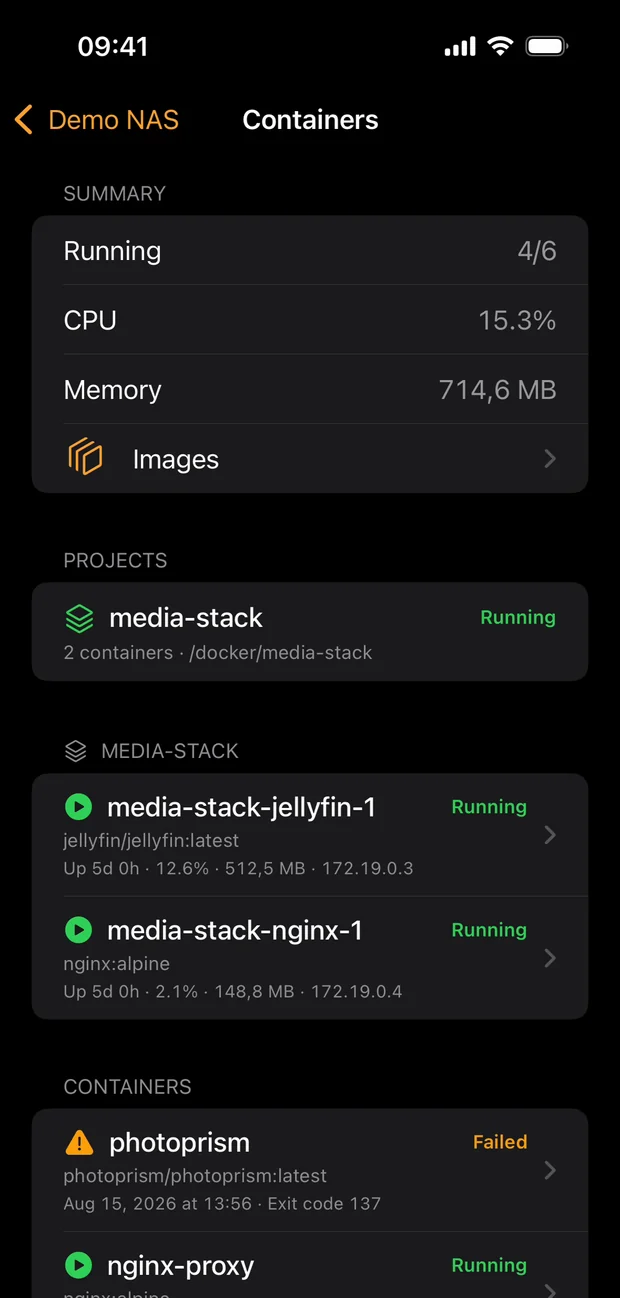
Containers detail with running containers, a failed one, CPU and memory summary

Container Manager

Containers

Every container with its state, image, uptime, CPU, memory and address, grouped by Compose project. Start, stop and restart them, read the log when one exits, and pull a newer image when an update is waiting.

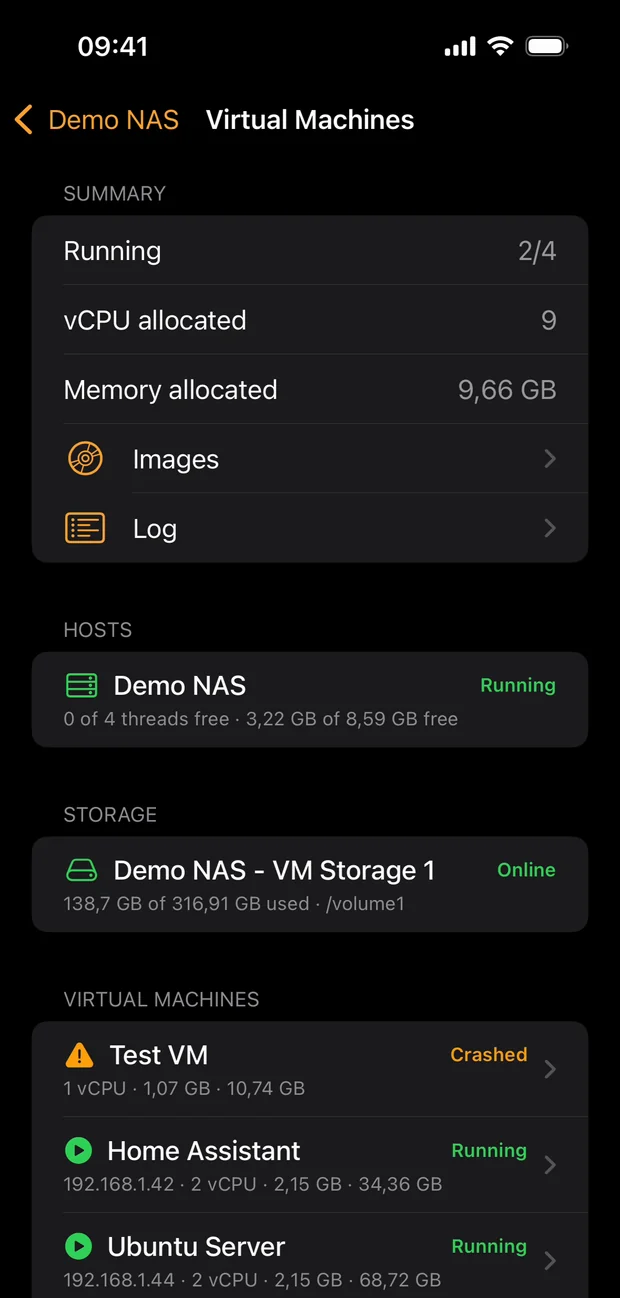
Virtual Machines detail listing guests, hosts and storage

Virtual Machine Manager

Virtual Machines

Guests, hosts and storage at a glance, with the state of each machine. Power on, shut down or force off, edit CPU and memory, and search the VMM log when a machine refuses to start.

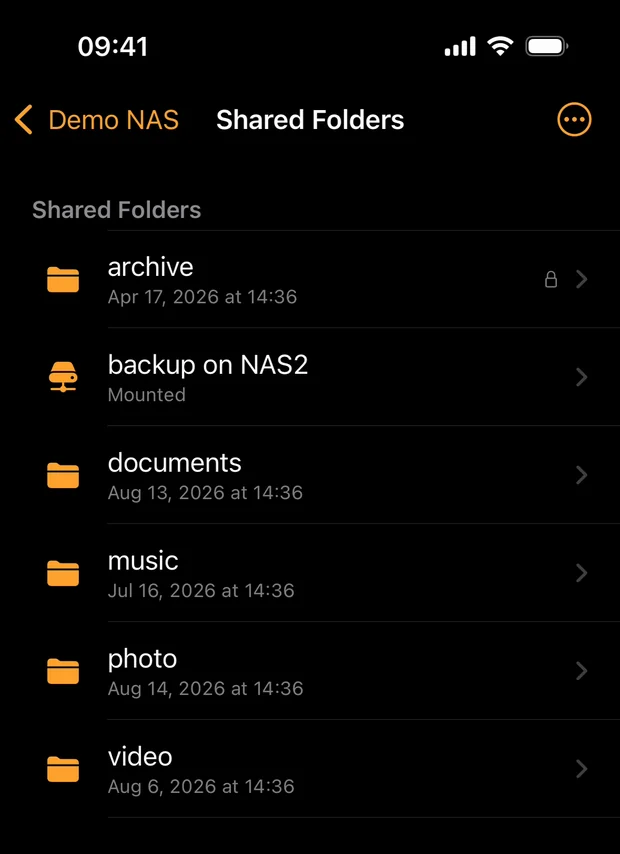
File browser listing shared folders on the NAS

File Station

Files

Browse your shared folders, with photo thumbnails and previews for images, PDFs and text. Upload from your phone, create folders, rename, copy, move, delete, zip a selection, and make a DSM sharing link with its QR code.

In development

Your NAS on the Home Screen

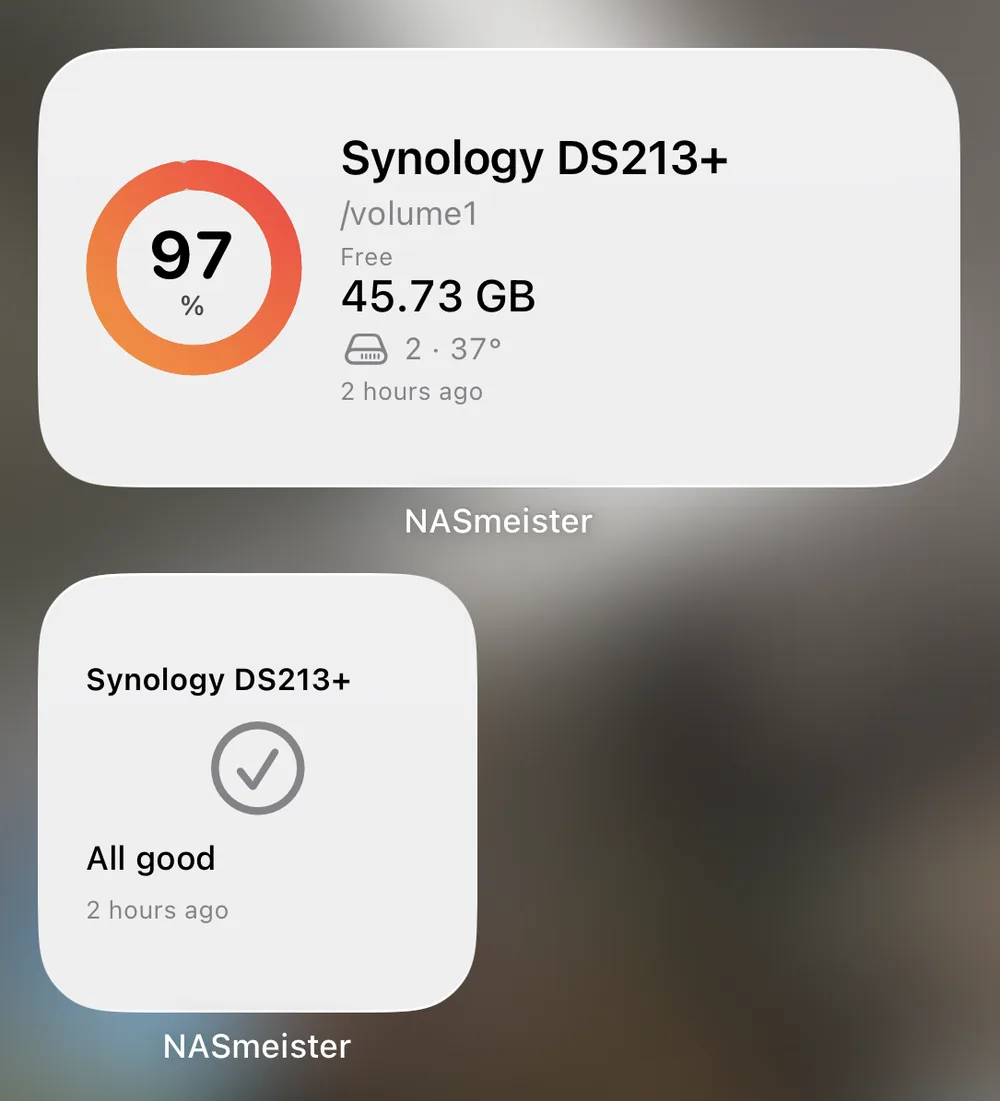
Widgets are the next big addition, planned for 2.7: storage, drive health and the numbers you care about, on the Home Screen and on the Lock Screen, without opening the app at all.

A widget mirrors what the app last read from your NAS and says how long ago that was, so a number is never shown as fresher than it is.

  • Home Screen and Lock Screen sizes
  • Pick which server a widget watches
  • Tap it to open that module in the app

Work in progress, shown running on a real device.

Two NASmeister widgets on an iPhone Home Screen: storage at 97 percent with 45.73 GB free and two drives at 37 degrees, and a smaller widget reporting All good, both showing when the data was read

Before you trust it

Try the whole app without a NAS

"Give this app your admin password" is a big ask. So the welcome screen has Try demo mode: the entire app, every module, every detail screen, running on sample data. Nothing to connect, nothing to sign up for, and no way to get it wrong.

When you are ready, add your NAS by address or QuickConnect ID. NASmeister finds Synology devices on your network by itself, and it handles two-factor sign-in and self-signed certificates.

Pricing

Free to start, Pro when you grow

The free tier is not a trial. One server with live vitals, for as long as you like.

Free

No account, no time limit

  • One server
  • Live vitals: CPU, memory, disk, network, storage, system, UPS
  • Kiosk mode and full-screen landscape tiles
  • Demo mode with sample data

NASmeister Pro

Monthly, yearly, or a one-time lifetime purchase

  • Unlimited servers, and several on one board
  • Every module: files, disk health, storage pool, logs, users, tasks, containers, virtual machines, sync
  • All actions: Wake on LAN, power, run task, drop connection, container and VM control
  • Usage history by day, week, month, six months or year
  • iCloud backup of your server list

Bought a module in an earlier version of NASmeister? That purchase unlocks Pro for life, at no cost, and you do not need to do anything.

Privacy

Your NAS credentials never leave your phone

There is no NASmeister account and no server of ours in the middle: the app connects straight to your DSM. Your password is stored only in the device Keychain and is sent only to your NAS. There are no ads and no advertising SDK.

The app does send anonymous crash reports and counters of which tiles get used, so development goes where people actually spend their time. That never includes your NAS name, address, serial number, file names or anything you type. The optional iCloud backup covers server metadata only, never passwords.

Read the full privacy policy

Questions

Before you ask

Which DSM versions and models are supported?

DSM 6 and DSM 7. Modules that depend on a package (Container Manager, Virtual Machine Manager, Synology Drive) tell you when the package is missing instead of failing silently.

Does it work from outside my home network?

Yes, by QuickConnect ID or by your own DDNS name or address. Two-factor sign-in is supported, and the app can remember the device so you are not asked for a code every time.

My NAS uses a self-signed certificate.

You get a clear prompt the first time and can pin the certificate. Pinned certificates can be reviewed and removed later in Settings.

Is there an Android version?

No, and none is planned. NASmeister is built by one developer who would rather do iOS properly.

What about QNAP, UGREEN or TrueNAS?

The rewrite made the app vendor-agnostic internally, which was one of the reasons for doing it. Synology is the only vendor implemented today, and no dates are promised.

What is coming next?

Widgets, planned for 2.7 and already running on a device: your NAS on the Home Screen and on the Lock Screen, without opening the app. There is more on that above. After that, the list of modules keeps growing.

Is it open source?

No. What is offered instead: no account, the password in the device Keychain, a direct connection to your own NAS, and a demo mode so you can judge the whole app before connecting anything.

Which languages does it speak?

English, Slovenian, German, French and Croatian.

Put your NAS on your home screen

Free for one server, and demo mode needs nothing at all.